Working as a team
One git repository holds a project for everyone who works on it: the code as
text (project-view/, one .st per POU and an .xml for every other object),
the project file the owner publishes, and cds-text-sync.json. git merges the
text; the project file is only the starting point each PC rebuilds from.
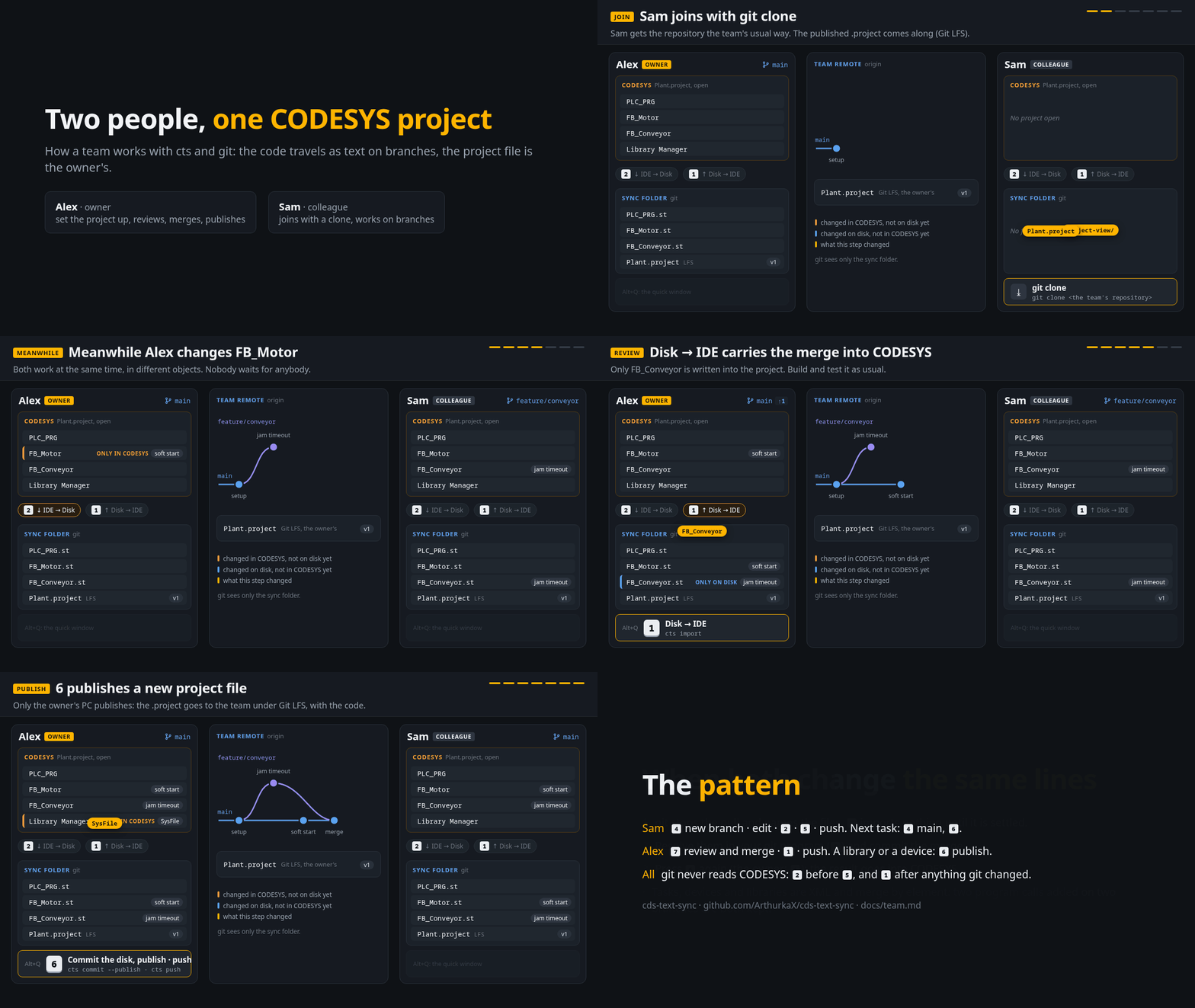
Every PC needs git and Git LFS (the project file is kept under Git LFS) and the
agent running in CODESYS: the cds-text-sync toolbar button or Tools >
Scripting > Scripts > C > cds-text-sync. Alt+Q opens the quick window; the steps below name its digits.
Who does what
- The owner is the PC that gave the project its id (the first
set-sync-folderof the project). Only the owner publishes the project file into the repository. - A colleague works on a clone of the repository. Their project file is a working copy: each update rebuilds it from the published file and the branch, so what they made has to be committed to count. Their CODESYS may hold other libraries or another version; a Library Manager or Project Settings that differ are reported, never committed. On a colleague's PC git does not show the project file as changed, and a push of the team's main branch or of a commit that changes the project file is refused there: a colleague's work goes to the team on a branch of its own, and the owner brings it into main. This guards against a slip on the PC; the rule itself is the team's server protecting its main branch.
- The role is the PC's, kept on it, not in the repository: Settings (
8), This PC, switches owner and colleague, e.g. when the owner hands the project over. Keep one owner per team.
The owner: setting it up
- Open the project, press Alt+Q,
8Settings,1Sync folder: a clone of the team's repository, or a new folder (then give it the team's remote with git,git remote add origin URL). 2IDE → Disk writes the code for the first time (the header saysnot on disk yetuntil then).6Commit the disk, publish: type a message, Enter. The window then asks whether the branch goes to the team:1Push the branch.
A colleague: joining
- Get the repository by the company's own means (a clone from its server), with Git LFS installed, so the project file arrives too.
- Open the project file from the clone in CODESYS and press Alt+Q. With no
sync folder on this PC yet, the window opens on Settings:
1and pick the clone. This is done once per PC. 6Pull and update the project. The project closes without saving, the published file comes back, the branch is pulled, the project opens again and the branch's code is imported and saved. A CODESYS of another version may ask about the project environment while it opens: answer it, and the update goes on.
Every day
- Edit in CODESYS as usual.
- Commit:
2IDE → Disk, then5Commit the disk, a message, Enter; then1pushes the branch, Esc keeps the commit on this PC for now. When the team pushed first, the push is refused and the window offers1to pull their commits; after the pull it asks about the push again. - See the team: the window's header reads
branch ↑N ↓M.↑counts the commits this PC has not pushed,↓the team's commits not pulled yet; the window asks the team's repository each time it opens (at most once a minute). - Look before taking:
3Compare lists the disk and the local branches; one picked opens the IDE against what that branch holds, in the compare program, without changing anything. Branches are merged in your git program (7opens it);1then carries the result into the IDE. - Take the team's work: a colleague presses
6; the owner presses4and picks the branch the work is on (its row sayspull). Both work offline only. An update refuses while the IDE has edits that are not committed: commit them first. - Publish again (owner):
6when the project file itself should change for everyone (a library, a device, a new CODESYS version). Until then each colleague's update imports every change since the last publish, so a publish now and then also keeps updates short.
Parts only the owner changes
A colleague who leaves the task configuration, the alarm configuration or a
device to the owner lists them in the clone's own .git/info/exclude (the
syntax of .gitignore, never committed):
**/Task Configuration/
**/Alarm Configuration/
cts reads Git's ignore rules (.gitignore, .git/info/exclude, the global
excludes file) and leaves every view file they match as it is, also one the
owner committed: an export neither writes nor removes it, an import does not
apply it, and a compare does not count it (it says how many it left out, and
names those the IDE holds otherwise than the disk).
A folder object is <folder>/.cds-object.xml, so a pattern ending in /
takes the folder with everything below it; the names are the project's own.
A rule that covers the application, or a folder but not what is below it, is
refused before anything is written. To take the owner's version of an ignored
file, run cts import --include-ignored PATH. Rules in .gitignore apply to
the owner as well.
When both sides changed the same lines
A pull meets edits of the same lines and git cannot merge them. The update
stops, names the files, and imports nothing. Open the folder in your git
program (7), resolve the files there and commit the merge; the next update
imports it, ↑ then counts it, and 5/1 sends it as usual. Until the merge
is committed, the update refuses before anything else.
Objects kept as XML merge by element, not by line: when one branch added a program call to a task and another added one too, or each added a library, the merge keeps both. Only a value both sides changed differently, such as one task's priority, stops the merge; take one side of that file in your git program.
From the command line
| What | Command |
|---|---|
| Choose this PC's sync folder (a clone) | cts set-sync-folder PATH |
| Make this PC the owner, or a colleague | cts set-sync-folder PATH --owner, --colleague |
| Commit | cts commit -m MSG |
| Commit and publish the project file (owner) | cts commit -m MSG --publish |
| Send the branch to the team | cts push |
| See the IDE against a branch | cts compare --tool --against BRANCH |
| Take the team's work into the IDE | cts project update |
| Open the folder in your git program | cts open |
cts guide commands describes each of them in full.